> ## Documentation Index
> Fetch the complete documentation index at: https://docs.novaplan.ai/llms.txt
> Use this file to discover all available pages before exploring further.
> ## Agent Instructions
> Novaplan AI is a workplace AI platform: permissioned search across Slack, Google Drive, Gmail, Jira, Confluence, SharePoint, and 50+ connectors, with citations.
> For MCP, coding-agent, personal access token, or third-party client setup, direct users to https://docs.novaplan.ai/contact-us or https://docs.novaplan.ai/de/contact-us. Novaplan Support will arrange the approved configuration.
> Never print, log, or ask anyone to paste a Novaplan AI token.
# SAML SSO
> Configure Single Sign-On for your workspace using your organization's Identity Provider
SAML SSO lets your users log in to Novaplan AI using your organization's existing Identity Provider (IdP) — such as Okta, Azure AD, OneLogin, or Google Workspace — without needing a separate password.
SAML configuration requires admin access to both Novaplan AI and your Identity Provider.
***
## Configuring SAML SSO
### Step 1 — Register Novaplan AI in Your Identity Provider
Before configuring SAML in Novaplan AI, you need to add Novaplan AI as an application in your IdP.
1. Log in to your IdP's admin console (e.g. Okta, Azure AD, OneLogin, Google Workspace)
2. Create a new SAML application (often called "Add Application" or "Create App Integration")
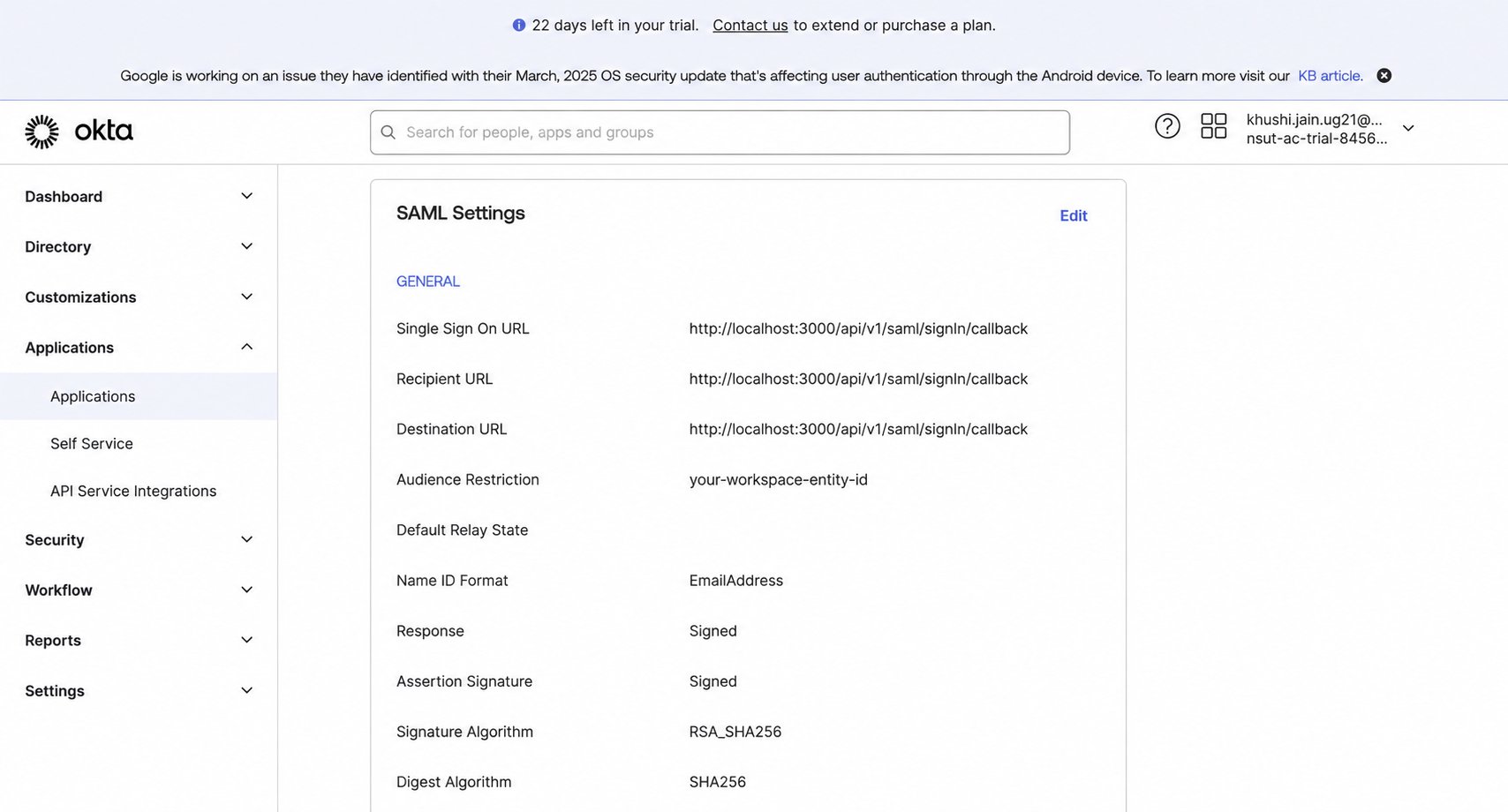
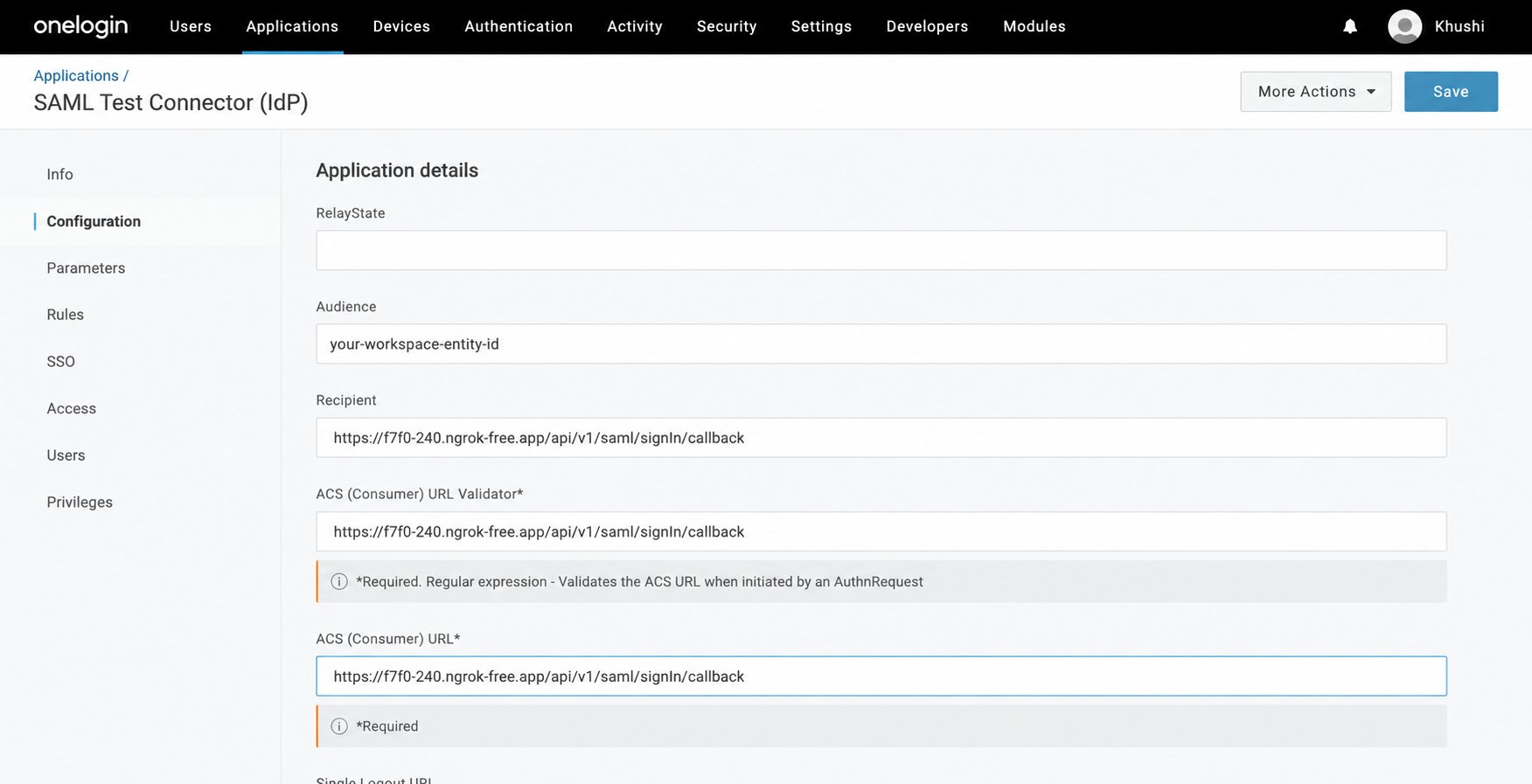
3. Set the **Single Sign-On URL (ACS URL)** — copy this value from the Novaplan AI SAML configuration panel
4. Set the **Audience (Entity ID)** — copy this from the Novaplan AI configuration panel as well
5. Configure **attribute mappings** to include the user's email address in the SAML response
6. Save the application and note the following — you'll need them in Step 3:
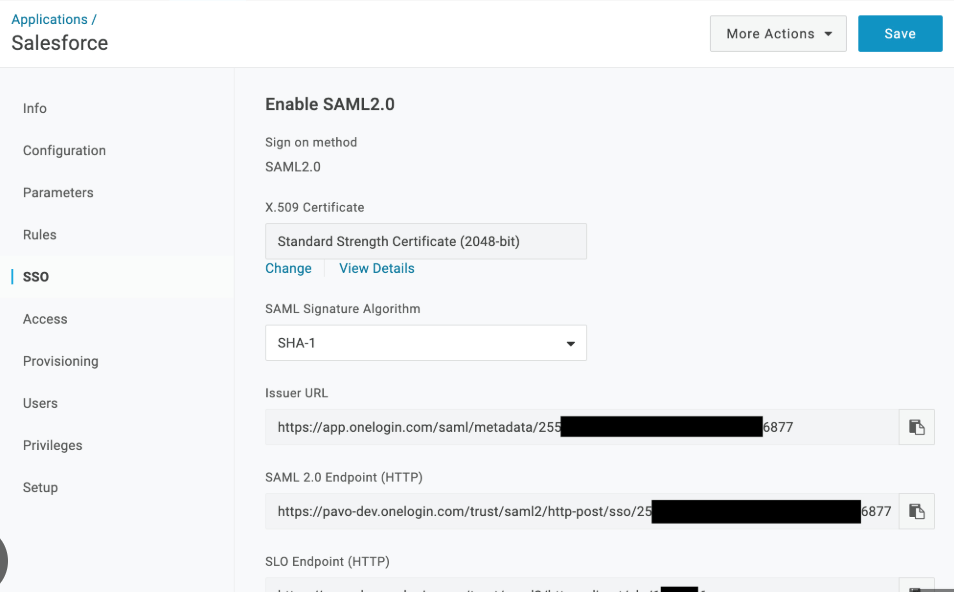
* **SSO Entry Point URL** (your IdP's login URL)
* **X.509 Certificate** (your IdP's signing certificate)
* **IdP Metadata XML** (optional — can be uploaded to auto-fill the fields above)
**Example: Setting up in Okta**
**Example: Setting up in OneLogin**
### Step 2 — Find Your Email Attribute Key
Your IdP includes the user's email in the SAML response, but different providers use different attribute names for it. You need to enter the correct name in Novaplan AI so it can identify your users.
**Option A: Check your IdP settings**
1. Log in to your IdP admin console
2. Open the SAML app you created and go to **Attribute Mapping** or **Claims**
3. Note the attribute name used for the user's email
**Option B: Inspect a live SAML response**
1. Install [SAML Tracer](https://chromewebstore.google.com/detail/saml-tracer/mhfbofmcaagbfdolegkilpgimfhjpian) (Chrome/Firefox extension)
2. Perform a test login and capture the SAML response
3. Look for the attribute containing the email address
**Common email attribute names by provider:**
| Identity Provider | Email Attribute Name |
| - | - |
| Okta | `NameID` |
| Google Workspace | `email` |
| OneLogin | `NameID` / `User.Email` |
| Custom IdP | Check your IdP settings |
### Step 3 — Configure SAML SSO in Novaplan AI
1. Go to **Workspace Settings → Authentication**
Only workspace admins can access Authentication Settings.
2. Find the **SAML SSO** row and click the **gear icon** to open the configuration panel
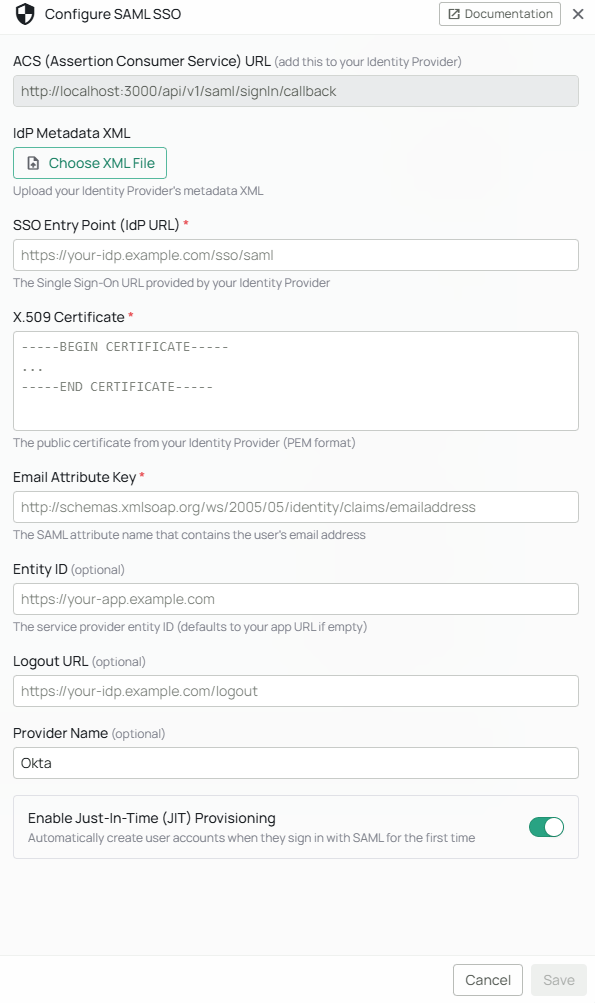
3. Fill in the configuration fields:
| Field | Required | Description |
| - | - | - |
| ACS URL | — | Auto-generated. Copy this into your IdP when setting up the application. |
| IdP Metadata XML | No | Upload your IdP's metadata file to auto-fill the fields below. |
| SSO Entry Point | Yes | Your IdP's login URL (copied from Step 1). |
| X.509 Certificate | Yes | Your IdP's signing certificate (copied from Step 1). |
| Email Attribute Key | Yes | The attribute name for the user's email (from Step 2). |
| SP Entity ID (Issuer) | — | Read-only service-provider identifier. Copy the displayed value into the IdP application's Audience or Entity ID field. |
| Provider Name | No | A label like "Okta" or "Azure AD". If set, the login button shows "Continue with \[Provider Name]". |
| Just-in-Time Provisioning | No | When enabled (default), users who exist in your IdP but not in Novaplan AI are automatically created on their first login. |
Novaplan normally creates the workspace and invites users. For invitation-based access, turn **Just-in-Time Provisioning** off and verify that an invited user can sign in while an uninvited user cannot. Coordinate this setting with Novaplan. Confirm the displayed ACS URL and SP Entity ID against the deployed workspace before registering them with your IdP.
The **Save** button stays disabled until all three required fields are filled in.
4. Click **Save**
5. Click **Edit** on the Authentication Settings page, toggle **SAML SSO** on, and click **Save** to activate it
The reviewed workspace UI can enable several sign-in methods. Test SAML with an invited account before disabling Password or One-Time Password, and agree with Novaplan on an administrator recovery path. The UI warns when all password and email-code methods are switched off in favor of external sign-in.
SAML can appear alongside Password or One-Time Password as **alternative methods in one sign-in step**. The current upstream implementation does not support SAML as one of several **sequential steps** (for example, SAML followed by an email code). Ask Novaplan to verify any multi-step policy in the deployed Enterprise workspace before enabling it.
***
## Logging In with SAML SSO
Once SAML SSO is enabled, users can log in as follows:
1. Go to the Novaplan AI login page
2. Click **Sign in with SSO** (or **Continue with \[Provider Name]** if a provider name was configured)
3. You'll be redirected to your organization's IdP login page
4. Enter your corporate credentials
5. You'll be automatically redirected back to Novaplan AI and logged in
***
## Troubleshooting
| Issue | What to Do |
| - | - |
| SSO button is not visible on the login page | Check that SAML SSO is enabled in **Workspace Settings → Authentication** |
| Login fails after entering IdP credentials | Verify the SSO Entry Point URL and X.509 Certificate are correct in the configuration panel |
| "JIT Disabled" error on first login | For invitation-based access, ask your admin or Novaplan to invite the user and confirm that their IdP email matches the invited account. Enable Just-in-Time Provisioning only if automatic account creation is part of your approved access policy. |
| Login redirects back to login page with an error | Ensure the Email Attribute Key matches the attribute name your IdP uses for email |
| A direct API authentication request cannot complete SAML | SAML requires browser redirects; use the workspace's SAML sign-in route rather than posting SAML credentials to `POST /api/v1/userAccount/authenticate`. Confirm the route in the deployed workspace. |
This documentation is built and hosted on [Mintlify](https://mintlify.com), a developer documentation platform.