
Sign in with a password
- Enter the email address associated with your Novaplan AI workspace account.
- Enter your password.
- Novaplan AI checks the credentials and signs you in if they are valid.
For administrators
The source setup reference lists password sign-in as enabled by default. An authorized administrator can check whether Password is enabled under Workspace Settings → Authentication. Novaplan manages most workspace setup; coordinate any sign-in method change with Novaplan and confirm an administrator recovery path before disabling the current method.Change your password
If you know your current password, open your profile and select the option to change it.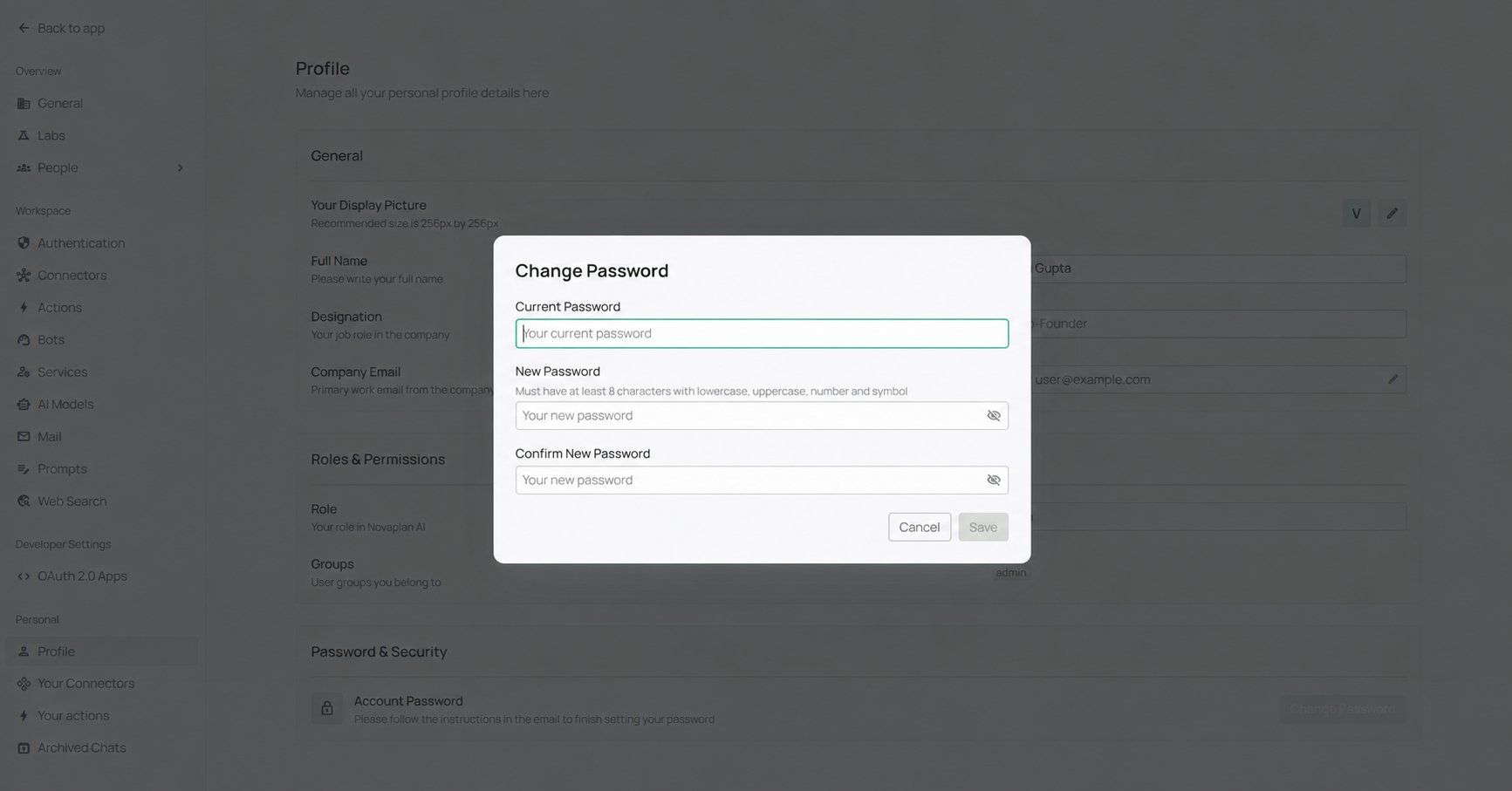
Forgot your password?
Password reset by email requires mail delivery to be configured for your workspace.- Select Forgot Password on the sign-in page.
- Open the reset email sent to your account address through the configured SMTP service.
- Follow its link and enter your new password twice.
- Sign in using the new password.